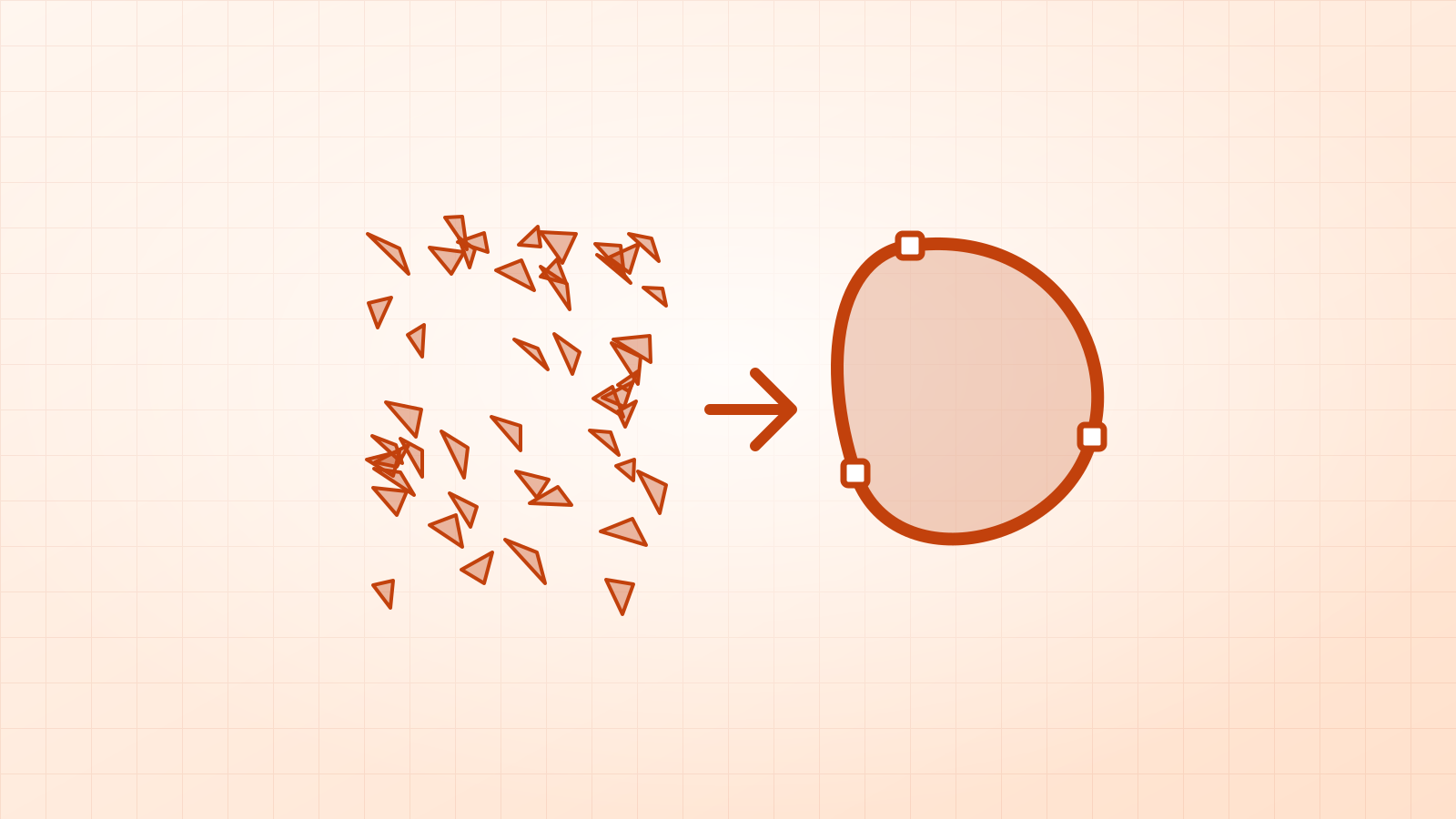
Drop the image into a converter, choose Logo / 1 colour, and move the Threshold until thin lines stay and gaps stay open. Tick Invert if you want the light parts instead, then download the SVG.
A black and white vector is the simplest kind there is: one solid shape, with no shades of grey. It’s what you want for vinyl decals, stencils, stamps, engraving and one-colour logos.
Which images work best?
| Image | Result |
|---|---|
| Logos and lettering | Excellent, usually very small files |
| Ink drawings and silhouettes | Very good |
| Pencil sketches | Good if the lines are dark; try Line art too |
| Colour clip art | Depends on contrast between colours |
| Photos | Poor: shading turns into rough patches |
How do I vectorize an image in black and white?
- Open the one-colour converter and drop in your PNG or JPG. Logo / 1 colour is already selected there.
- Zoom in on thin lines, small letters and the gaps between them.
- Move the Threshold slider: lower it if parts disappear, raise it if letters merge.
- Tick Invert if you want to keep the light parts.
- Download the SVG.
Which threshold should I use?
| What you see | What to do |
|---|---|
| Thin lines vanish | Lower the threshold |
| Letters fill in or merge | Raise the threshold |
| Grey shadows become black blobs | Raise the threshold, or remove the shadow first |
| The picture is reversed | Tick Invert |
How small can the file be?
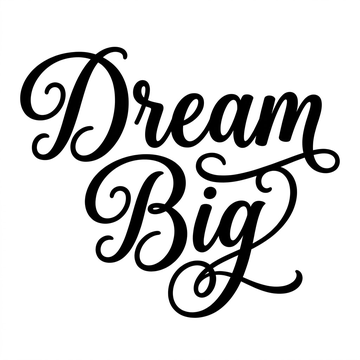
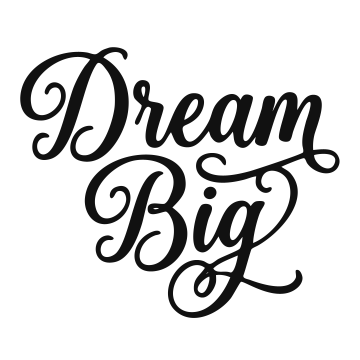
One colour means few shapes, so files stay tiny. In our tests the “Dream Big” script lettering went from a 107 KB JPG to a 7.5 KB SVG, and a skyline logo from a 198 KB PNG to a 7.9 KB SVG. Both stay sharp at any size.
How do I do this in other apps?
- Inkscape: use Single scan › Brightness cutoff in Trace Bitmap. See the Inkscape guide.
- Illustrator: use the Black and White Logo preset in Image Trace. See the Illustrator guide.
- Canva: choose Black and white in the Vectorify app on a paid plan. See the Canva guide.
What should I check before cutting?
- Lines are thick enough for your material; under about 1 mm is hard to weed on vinyl.
- Letters like O and A keep their holes. For a stencil, those centres fall out unless you add bridges.
- The width in the SVG matches your project, so it opens at the right size.
Questions
What does the threshold do?
It decides which pixels count as ink. Everything darker than the threshold becomes part of the shape, and everything lighter is left out.
Can I make the vector another colour?
Yes. It’s one shape, so you can choose its colour with Cut colour in Vectacle, or change it later in any vector app.
Can I vectorize a colour image in black and white?
Yes. Each colour is treated by how dark it is, so check the preview: two colours of similar brightness can merge. If they do, move the threshold.
Why not just use a black and white PNG?
A PNG is still pixels, so it blurs when enlarged, and a cutting machine has no clean path to follow. A vector stays sharp and gives clean cut lines.
Sources: Inkscape tutorial: Tracing bitmaps · Adobe Help: Image Trace panel options