PNGJPGWebPSVG
PNG to SVG, without the mess
Drop a PNG and get an SVG with smooth edges, true curves and only the shapes you need, traced in seconds.
- Cut files for Cricut & Silhouette
- Real gradients
- Crisp small text
- Nothing is stored


- Upscaling small image
- Reading colours
- Sharpening edges (AI)
- Tracing shapes
- Smoothing curves
How to convert a PNG to SVG
- Drop your PNG into the box above, paste it, or click Choose an image. WebP and JPG work too.
- Pick a type. Auto suits most images. Use Logo / 1 colour for a single shape, Clip art / stickers for flat colours, or Line art for drawings.
- Remove the background if your PNG sits on a white or coloured box.
- Zoom in and compare. The original and the SVG move together, so you can check every edge.
- Download the SVG, a large transparent PNG (2,000 pixels or more) or a PDF.
Examples made with Vectacle
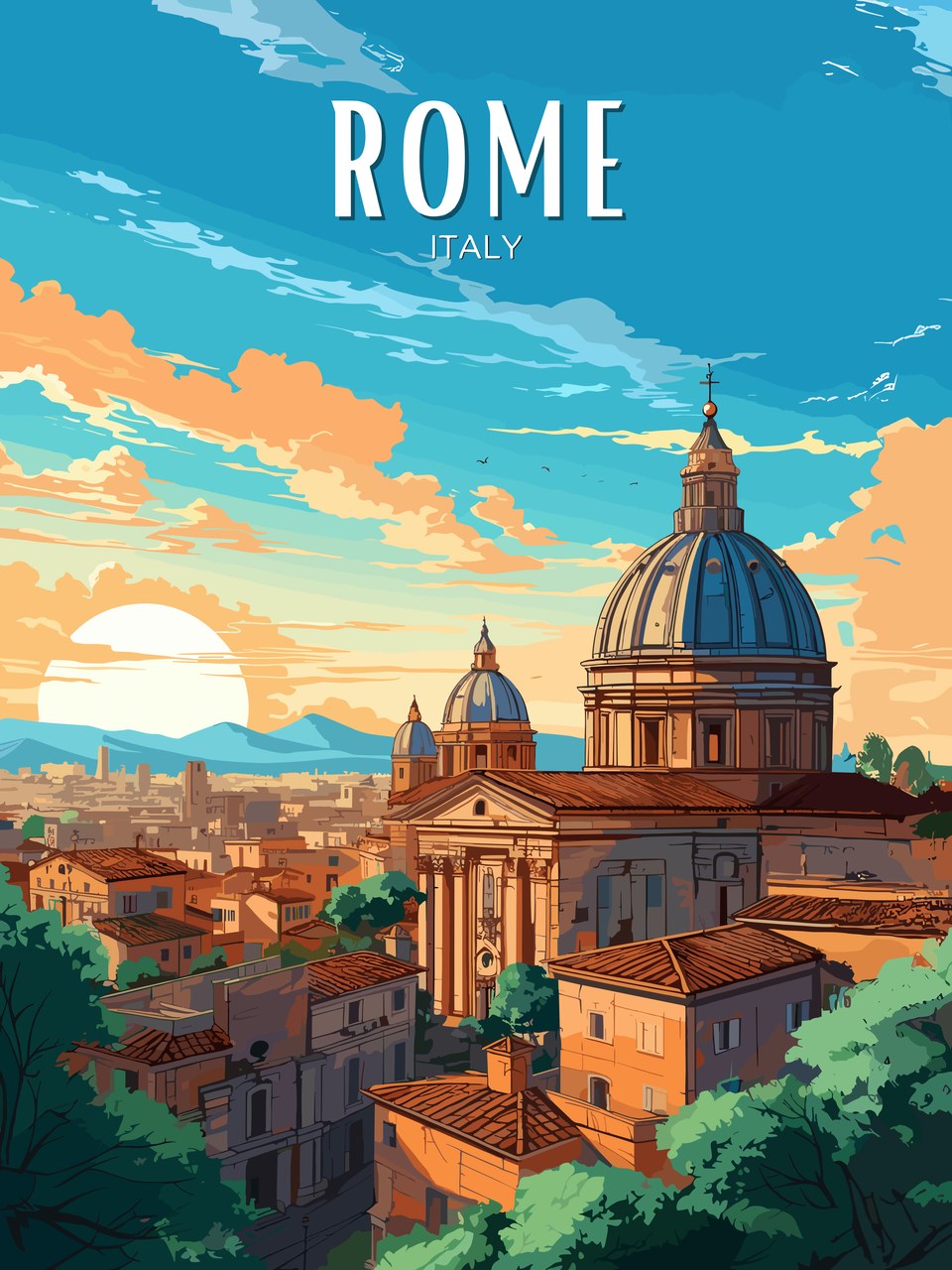
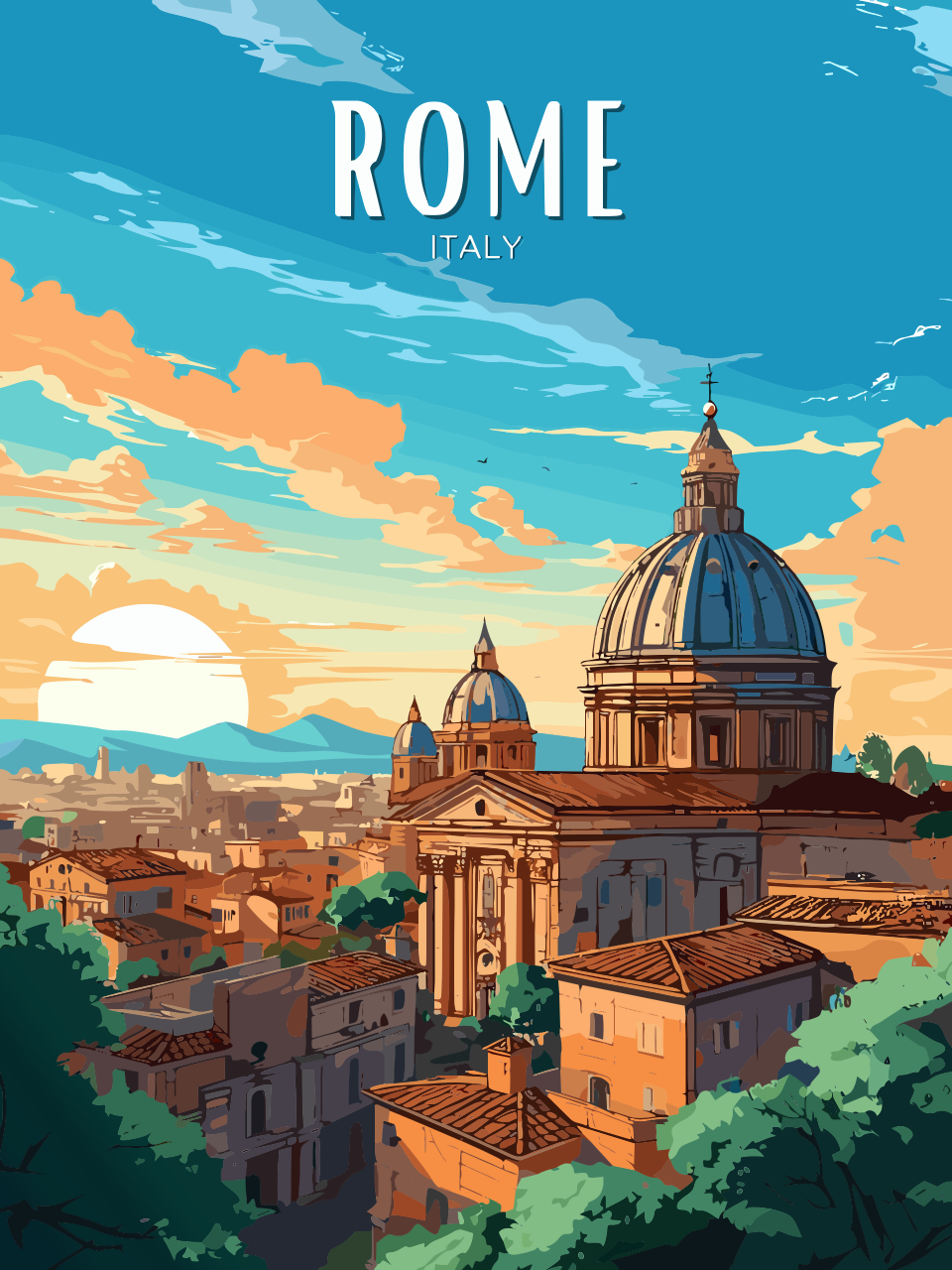
Original on the left, Vectacle SVG on the right. The checkerboard shows where the background was removed.




What makes a PNG convert well
Tracing works best on images with clear edges and flat colours: logos, lettering, stickers, clip art, icons and t-shirt designs. The bigger the PNG, the more detail Vectacle can follow. Small images (under 1,000 pixels) are enlarged with a small AI model first, so their edges come out smoother.
Photos and soft paintings can be converted, but they turn into many flat colour patches rather than a clean vector. For those, a PNG is usually the better file.
Why switch to SVG at all? An SVG is drawn from shapes, not pixels, so it stays sharp at any size: a business card, a banner or a vinyl cut from the same file. It is also small and easy to recolour.
More ways to use Vectacle
Guides and articles
How to vectorize an image in Photoshop
Photoshop has no Image Trace, but you can still make vector paths: select, make a work path, add a shape layer and export. Plus faster options.
GuideHow to vectorize an image in Inkscape
Vectorize an image in Inkscape for free: turn a PNG, JPG or other raster image into vector with Trace Bitmap. Best settings, cleanup, saving SVG and fixes.
GuideHow to vectorize an image in Illustrator
Vectorize a PNG or JPG in Illustrator with Image Trace: the right preset, key settings, expanding, removing the white background and saving as SVG.
Questions
Is this PNG to SVG converter free?
Yes. Converting and downloading are free while Vectacle is new, and there is no sign-up.
Is my PNG stored anywhere?
No. It’s converted and then forgotten; Vectacle keeps no copy.
Does it keep transparency?
Yes. Transparent areas in your PNG stay empty in the SVG. If your PNG has a plain white or coloured background, switch on Remove background to drop it.
Does it convert PNG to SVG with colour?
Yes. Every colour in your PNG becomes its own set of shapes in the SVG, and smooth colour fades become real gradients. Auto picks the number of colours your design really uses. You can set it yourself with the colour slider, or choose Logo / 1 colour for a single-colour SVG.
Can I edit the SVG afterwards?
Yes. The result is a normal SVG made of filled shapes, so it opens in Illustrator, Inkscape, Affinity Designer, Figma, Canva, Cricut Design Space and Silhouette Studio Designer Edition.